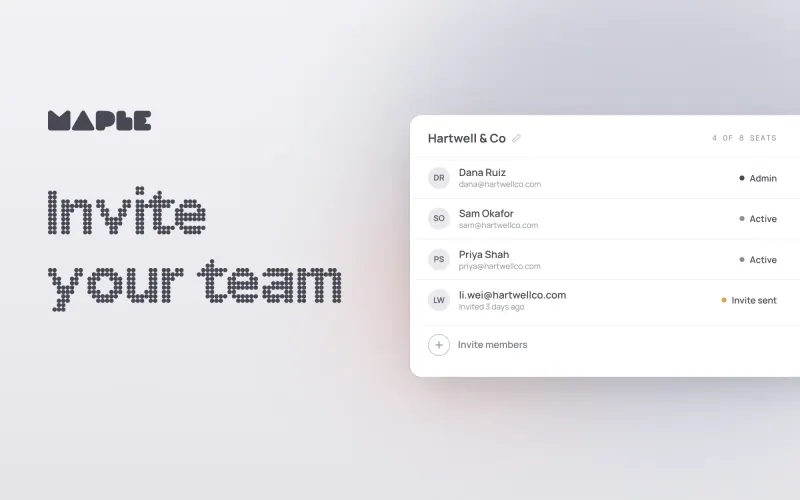
Team accounts in Maple are a powerful, secure way to use AI with your organization's confidential information.
Maple allows any authenticated user to purchase, create, and manage team accounts directly from the application. This guide covers the complete workflow from team purchase to member management.
Setting up your team is 3 simple steps:
- Purchase the number of seats you need
- Invite your team members
- Chat with encrypted AI
Note: Prices might be different than these screenshots
Purchasing a Team Plan
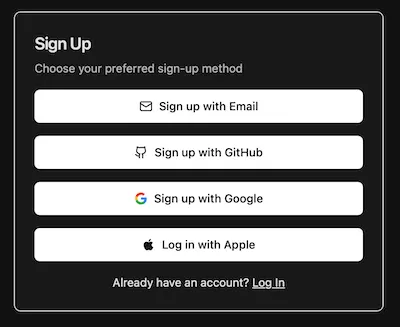
Go to the Pricing page and hit "Start Chatting" on the Team plan.
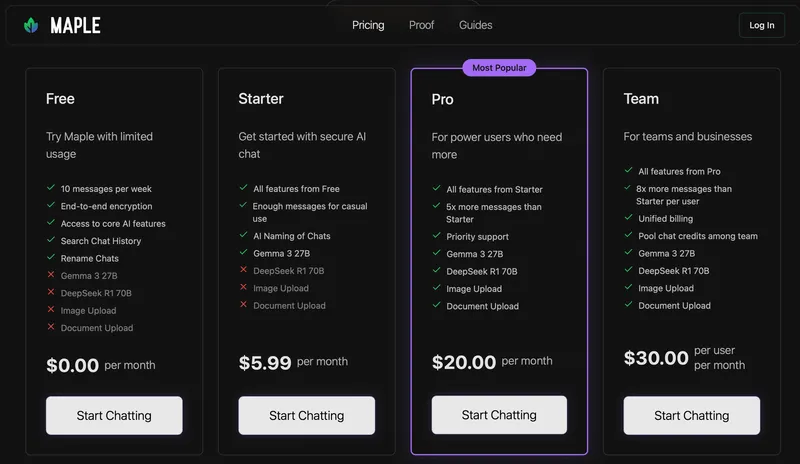
Log in with your existing Maple account or sign up if you don't have one yet.
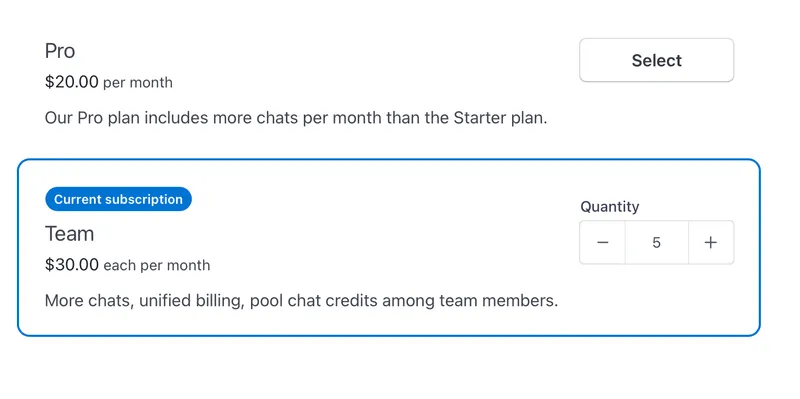
You'll be redirected to Stripe checkout where you select the number of seats you need. Minimum is 2. Then pay with your preferred method.
Note: Bitcoin payments are not available for Team accounts.
Managing the Team
After successful payment, you'll be redirected to the team setup flow.
On this screen you can name your team and see the number of available seats.
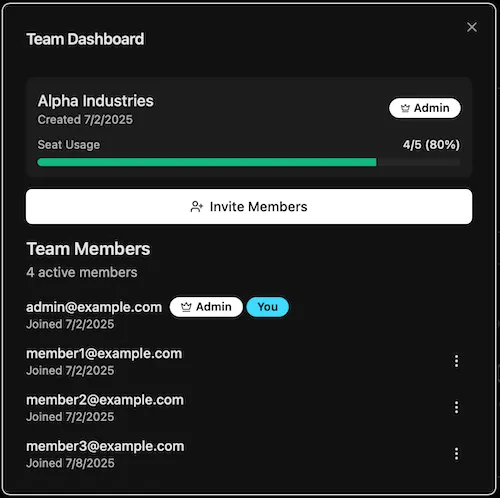
Invite people to join your team using their email address. You can enter multiple people at one time by putting each email on its own line or separating them with a comma.
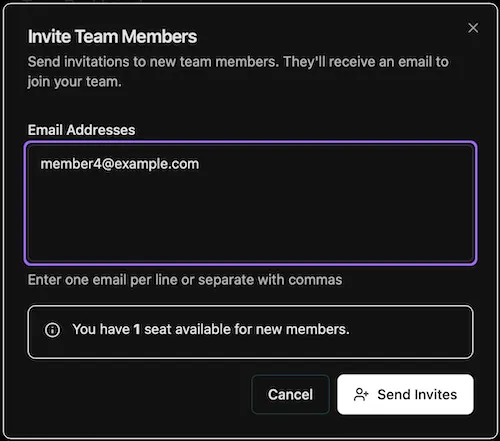
Tell your team members to check their email and click the "Accept Invite" button.

Members log in if they already have a Maple account or create one at this step.
Chat with AI
You and your team members are all set to start chatting!
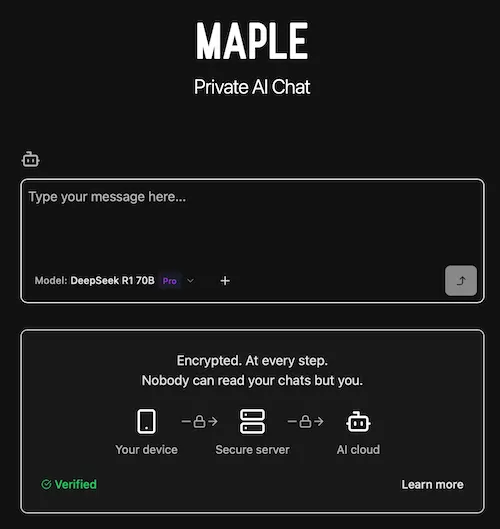
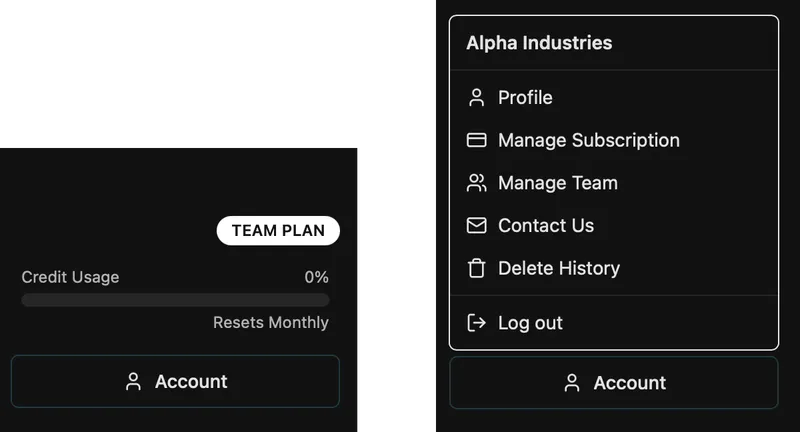
Each user knows they are on the team plan by looking at the bottom of the history pane. Users can see their team name, credit usage, and more.
This is where Admin users access the Team Dashboard and the Subscription. If you want to add more team members in the future, you do it on the Manage Subscription screen.
Additional Management Options
Edit Team Name
Click the pencil icon next to team name to change it.
Resend an Invite
Invites expire after a few days, so you might need to send a new one. Go to the Team Dashboard and hit "Resend Invite" next to that user.
Remove a User
If a person is no longer part of your organization, you can go into the Team Dashboard and click the ⠇button next to their email, and choose "Remove from Team".
The user is removed from your team but their Maple account is still active. They revert to being a Free account.
Getting Help
If something isn't working right for you, reach out to us by email [email protected] or hop into our Discord.
Onboard your organization to Maple and start securing your important data today!